Privacy Screen for Laptop Complete Informative Guide
1. Introduction
In today’s world, laptops are used everywhere—offices, universities, cafés, airports, and even while traveling. While working in public places is convenient, it also creates a big privacy risk: people sitting next to you can easily glance at your screen and see personal or confidential information. This problem is often called “shoulder surfing,” and it happens more often than people realize.
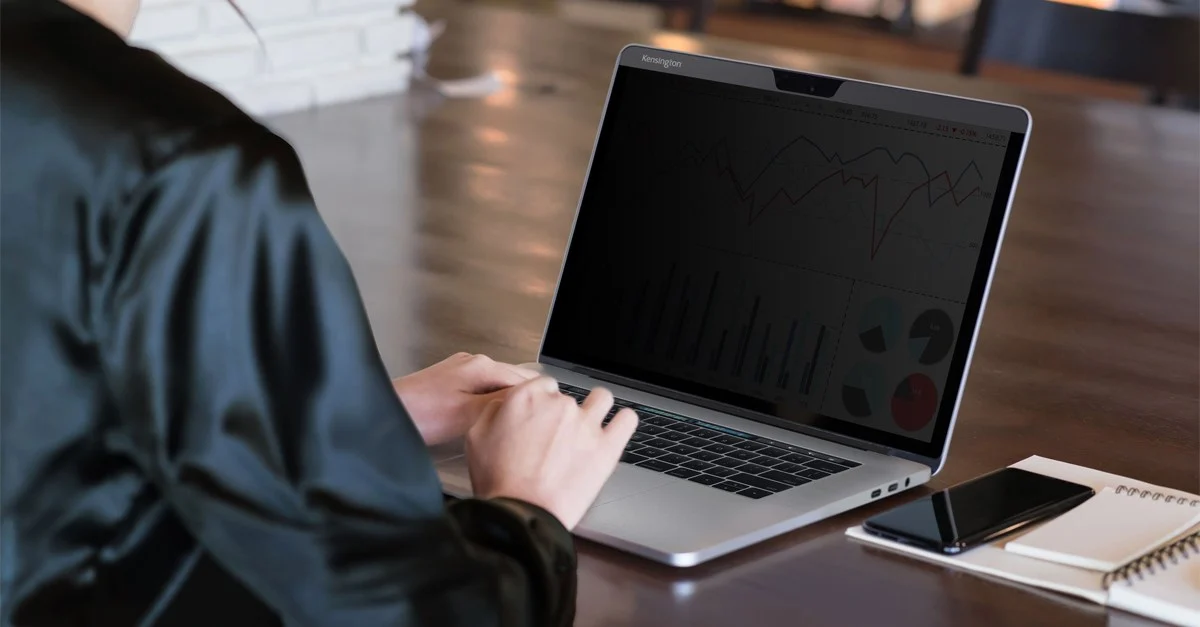
That’s where a privacy screen for laptop becomes a smart solution. It is a thin protective layer that sits on top of your laptop display and limits what people can see from side angles. From the front, your screen looks normal, but from the sides, it looks dark or unreadable.
In this detailed guide, you’ll learn what a laptop privacy screen is, how it works, what types are available, how to choose the correct one, and how to install and maintain it properly.
2. Understanding Privacy Screens
2.1 What is a Laptop Privacy Screen?
A privacy screen for laptop is a screen filter designed to protect your display from unwanted viewing. It’s usually made from a special layered plastic material and attaches directly to your laptop screen using magnets, adhesive strips, or slide-in mounts.
Unlike a normal screen protector that mainly prevents scratches, a privacy screen focuses on one main goal: blocking side viewing so only the person sitting directly in front can see the content clearly.
2.2 How Privacy Screens Work (Simple Explanation)
Most privacy filters use a technology called micro-louver. Think of it like tiny vertical blinds built into the screen film. These microscopic “blinds” allow light to pass straight through to your eyes when you’re sitting in front of the laptop, but they block light when someone looks from the left or right side.
That’s why, when you move away from the center, the screen starts to look darker or even completely black.
Many privacy screens also include additional layers that can:
- Reduce glare from lights and sunlight
- Filter some blue light for comfort
- Protect the display from fingerprints and scratches
2.3 Privacy Screen vs Regular Screen Protector
A lot of people confuse privacy screens with regular protectors, but they are not the same. Here’s a clear comparison:
| Feature | Privacy Screen for Laptop | Regular Screen Protector |
|---|---|---|
| Blocks side viewing | Yes | No |
| Reduces glare | Often yes | Sometimes |
| Scratch protection | Yes | Yes |
| Improves privacy in public | Strongly | Not really |
| May reduce brightness | Yes (slightly) | Usually no |
| Best for | Offices, travel, public work | Basic screen safety |
If your main purpose is confidentiality, then a privacy screen for laptop is the better choice.
3. Benefits of Using a Privacy Screen
3.1 Protects Sensitive Data from Visual Hacking
The biggest advantage is simple: privacy. Whether you’re replying to emails, working on business documents, checking online banking, or viewing private messages, you don’t want strangers or coworkers reading your screen.
A privacy screen helps prevent:
- Password exposure
- Personal chats being seen
- Business data leaks
- Client information being viewed
- Financial details being stolen
3.2 Perfect for Public and Shared Workspaces
Many people work in places where others are very close, such as:
- Open-plan offices
- Shared desks and coworking spaces
- University libraries
- Airport lounges
- Coffee shops
In these environments, a privacy screen for laptop becomes a daily-use tool, not just an extra accessory.
3.3 Reduces Glare and Improves Viewing Comfort
Many privacy screens come with an anti-glare surface that reduces reflections from overhead lights. This is especially helpful if your laptop is used under bright office lighting.
Glare reduction can make your screen feel easier to read, especially during long working hours.
3.4 Adds an Extra Layer of Screen Protection
Even though privacy is the main goal, you also get physical protection. The filter acts like a barrier against:
- Small scratches
- Dust and smudges
- Minor scuffs from keyboard contact
- Fingerprints (depending on the surface type)
So your laptop screen stays cleaner and safer.
3.5 Helpful for Touchscreen Users (With the Right Model)
If you have a touchscreen laptop, you can still use a privacy screen—but you must choose a touchscreen-compatible option. Some privacy filters are thick or have surfaces that reduce touch sensitivity, while others are designed to work smoothly with touch.
4. Types of Laptop Privacy Screens
There are several types available, and choosing the right one depends on how you use your laptop daily.
4.1 Magnetic Privacy Screens
Magnetic models are very popular because they are easy to attach and remove. They usually stick to the screen bezel using magnetic strips, and you can take them off anytime.
This type is ideal if:
- You don’t want permanent adhesive
- You switch between privacy mode and normal mode often
- You share your laptop screen with others sometimes
4.2 Adhesive Strip Privacy Screens
These use thin adhesive strips or clear tabs to hold the filter in place. They are more secure than magnetic ones, but they can feel semi-permanent.
This option is best for people who want a stable setup and don’t plan to remove the privacy screen frequently.
4.3 Slide-in and Clip-on Models
Some laptops (especially business models) support slide-in privacy filters that fit into built-in screen grooves. Clip-on versions attach from the top or sides.
These are less common but can be useful for certain laptop designs.
4.4 Built-in Privacy Displays (Premium Laptops)
Some premium business laptops include built-in privacy display technology (for example, certain enterprise models). Instead of using a physical filter, you enable privacy mode from your keyboard or system settings.
This is convenient, but it usually costs more because it’s part of the laptop hardware.
4.5 Quick Comparison: Pros and Cons
| Type | Pros | Cons |
|---|---|---|
| Magnetic | Easy removal, reusable, travel-friendly | May shift slightly if not aligned well |
| Adhesive | Strong grip, stable | Harder to remove/reuse |
| Slide-in/Clip-on | No adhesive needed | Limited compatibility |
| Built-in privacy display | No extra accessory, quick toggle | Expensive and model-specific |
5. How to Choose the Right Privacy Screen for Laptop
Buying the wrong size is the most common mistake people make. A privacy filter must match your laptop display perfectly.
5.1 Measure Your Screen Size and Aspect Ratio
Laptop screen size is measured diagonally (corner to corner), like 13.3”, 14”, 15.6”, or 16”.
But size alone is not enough. You must also match the aspect ratio, such as:
- 16:9 (very common)
- 16:10 (common in modern laptops)
- 3:2 (some productivity laptops)
A 14-inch 16:9 privacy screen will not fit correctly on a 14-inch 16:10 laptop. It may cover the wrong area or leave gaps.
5.2 Pick the Right Viewing Angle
Most privacy screens block visibility from side angles, usually around 30° to 60° depending on the design.
A narrower viewing angle means stronger privacy, but it can also feel darker if you’re not sitting directly centered. If you move a lot while working, a slightly wider angle may feel more comfortable.
5.3 Material Options (PET Film, Tempered Glass, Acrylic)
Privacy screens come in different materials:
- PET Film: lightweight, flexible, common, affordable
- Tempered Glass: stronger and premium feel, but heavier
- Acrylic: durable, often used for specific models
For most people, PET film is the best balance of cost and performance.
5.4 Anti-Glare and Blue Light Filtering
Some privacy screens offer extra comfort features. These can be useful, but you should understand them clearly:
Anti-glare helps reduce reflections, making it easier to work under lights. Blue light filtering may reduce eye fatigue for some users, especially at night. However, blue light features vary a lot from brand to brand, so don’t buy only based on marketing claims.
5.5 Check Laptop Model Compatibility
Before buying, confirm:
- Screen size and aspect ratio
- Whether your laptop has a webcam notch or thick bezel
- Whether you need touchscreen support
- Whether your laptop has curved edges or thin bezels
If your laptop has very thin bezels, magnetic and adhesive models usually work better than clip-on styles.
5.6 Price and Durability
A privacy screen for laptop can range from budget to premium pricing. Higher-priced options often provide:
- Better clarity from the front
- Stronger side blackout
- More durable surface coating
- Better anti-glare performance
- Stronger attachment quality
If you travel often or use your laptop daily for work, investing in a higher-quality filter can be worth it.
6. Installation and Care
6.1 Preparing Your Laptop Screen
Before installation, you should clean your screen properly. Dust and fingerprints can cause bubbles or uneven attachment.
A simple preparation checklist includes:
- Turn off the laptop
- Wipe with a microfiber cloth
- Remove dust using a screen-safe cleaner
- Let it dry fully
6.2 Step-by-Step Installation (Magnetic & Adhesive)
Magnetic Installation (Typical Method)
Magnetic filters usually attach easily. You align the filter with your screen edges and let the magnets hold it in place. Make sure it sits flat and doesn’t block your webcam.
Adhesive Installation (Typical Method)
Adhesive models require more care. You apply the adhesive strips or tabs to the edges, align the filter carefully, and press gently to secure it.
It’s important to install slowly because once the adhesive sticks strongly, repositioning can be difficult.
6.3 Removing and Reinstalling Your Privacy Screen
Magnetic models are easy to remove and reinstall. Adhesive ones may be removable, but repeated removal can reduce stickiness over time.
If you plan to remove it often, magnetic is the smarter choice.
6.4 Cleaning and Maintaining the Filter
A privacy screen can get smudged quickly, especially on touch devices. For best results:
- Use a microfiber cloth regularly
- Avoid rough tissues or paper towels
- Don’t use harsh chemicals
- Store removable filters in a sleeve when traveling
A clean filter improves clarity and makes the screen easier to read.
6.5 Tips to Avoid Damage
To keep your privacy screen in good condition:
- Don’t bend it too much (for film types)
- Avoid pressing hard while cleaning
- Keep it away from sharp objects
- Don’t close your laptop if the filter is misaligned
7. Common Misconceptions About Privacy Screens
7.1 “Privacy Screens Ruin Display Quality”
A good privacy screen for laptop use should still look clear from the front. However, it’s true that privacy filters can slightly reduce brightness and sharpness because of the layered design.
The best solution is to increase brightness a little when using the filter, especially in bright environments.
7.2 “Privacy Screens Are Only for Business People”
This is not true. Anyone can benefit, including:
- Students using laptops in class
- Freelancers working in cafés
- Remote workers traveling
- People checking personal accounts in public
Privacy is not just a business need—it’s a personal safety need too.
7.3 “They Don’t Work on Touchscreens”
Many people think privacy screens break touchscreen functionality. The truth is: some do, some don’t. If you have a touchscreen laptop, you just need a filter designed for touch compatibility.
8. Use Cases and Practical Scenarios
8.1 Working in Public Spaces
In cafés, airports, or public transport, people sit very close. Even a quick glance can expose your information. A privacy screen for laptop use is one of the easiest ways to stay safe without changing your working style.
8.2 Office Privacy in Open Workspaces
Open offices are common now, but they reduce privacy. A privacy filter helps keep your work protected even if colleagues walk behind you or sit nearby.
8.3 Business Travel and Remote Work
Travelers often work in hotels, meeting rooms, and lounges. In these places, you may be working on confidential documents. Privacy screens help you stay professional and secure.
8.4 Students and Study Environments
Students may use laptops for notes, research, or personal work. In crowded classrooms or libraries, privacy screens prevent distractions and protect personal content.
9. Comparing Popular Privacy Screens (What to Look For)
Instead of only choosing a brand name, it’s better to compare based on features.
Best Privacy Screen Features by Need
| Your Need | Best Feature to Choose |
|---|---|
| Frequent travel | Magnetic removable privacy screen |
| Office daily use | Adhesive stable privacy filter |
| Bright environments | Anti-glare surface |
| Eye comfort | Blue light filtering option |
| Touchscreen laptop | Touch-compatible privacy screen |
| Maximum privacy | Narrow viewing angle (strong blackout) |
A smart buyer focuses on fit, comfort, and daily usability rather than just price.
10. FAQs About Privacy Screen for Laptop
1) Will a privacy screen make my laptop display darker?
Yes, slightly. Most privacy filters reduce brightness because they block side viewing. Increasing brightness usually solves this.
2) Can I use a privacy screen outdoors?
You can, but outdoor sunlight can still cause glare. If you work outdoors often, choose a privacy screen with strong anti-glare.
3) Are laptop privacy screens reusable?
Magnetic ones are usually reusable. Adhesive ones may be reusable a few times, but not always long-term.
4) How do I know what size privacy screen to buy?
Check your laptop screen size (diagonal inches) and aspect ratio (16:9, 16:10, etc.). Matching both is important.
5) Can I use a privacy screen with a webcam?
Yes, most filters have a webcam cutout or allow camera visibility. Just make sure your model doesn’t block your webcam area.
11. Conclusion
A privacy screen for laptop is one of the most practical accessories you can buy if you work or study in public spaces. It protects your sensitive information from side viewers, helps reduce glare, and adds an extra layer of screen protection. Whether you’re a student, freelancer, office worker, or traveler, a privacy screen can improve both your privacy and your peace of mind.
The key to choosing the right one is simple: select the correct size and aspect ratio, decide whether you want magnetic or adhesive installation, and pick the extra features that match your daily needs. With the right privacy screen, you can confidently use your laptop anywhere without worrying about who’s watching.